TL;DR

Get audio and creator gear delivered free — and shop member deals
- Fast, free delivery on millions of items
- Access to Prime Big Deal Days deals on October 6–7
- Prime Video, Amazon Music and more included
A wireless microphone for streaming gives you room to move during presentations, interviews, or live demonstrations, while a wired mic is often simpler for a fixed desk. Choose a system your computer, camera, phone, or console supports, then test its placement, battery, signal, and audio-video sync in the actual streaming space.
A wireless microphone can follow you from your desk to a whiteboard, across a room, or between interview guests. That freedom helps only if your voice stays clear and the receiver works with your streaming gear.
This guide walks you through when wireless makes sense, what to check before buying, and how to test your setup before viewers hear a crackle, clothing rustle, or sudden silence.
Pick wireless when your stream involves walking, presenting, or interviewing; a wired mic is often simpler at a fixed desk.
Check your exact device’s audio support and receiver connection before you buy, including any adapter or interface costs.
Test a lavalier with your actual clothing to catch fabric, jewelry, wind, or breath noise.
Treat advertised range as an ideal-condition figure; test the signal along your real on-camera route.
Record a sample, monitor with headphones, check sync and battery status, and prepare a backup for important streams.
Know when wireless movement is worth the extra setup
A wireless microphone for streaming sends your voice to a receiver without a cable tethering you to your computer or camera. It is useful when you walk, present, interview a guest, or demonstrate something on camera; at a stationary desk, a wired USB or XLR mic often costs less and needs fewer parts.
Imagine teaching a drawing stream: you explain a brush technique at your desk, then step back to show the whole canvas. A clip-on transmitter lets you move without dragging a cable across your chair. If you never leave the desk, that same transmitter may add charging and connection checks without making your stream sound better.
Use this quick test: will you move beyond arm’s reach while speaking? If yes, wireless may solve a real problem. If no, start by improving mic distance, room echo, or a wired mic’s position before paying for mobility you will not use.
Choose the mic style that keeps your voice steady
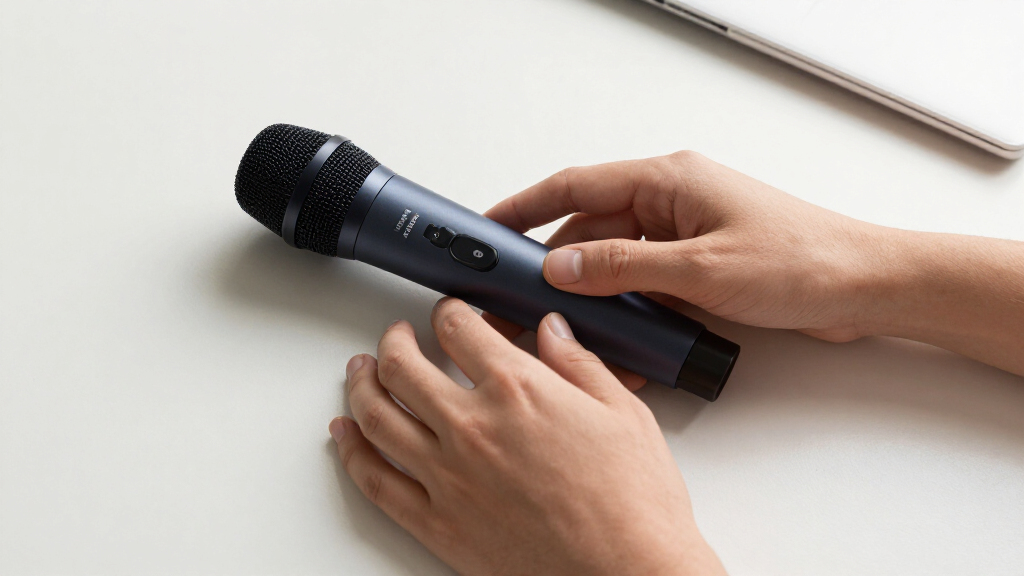
For a moving host, a lavalier mic clipped securely near the upper chest keeps roughly the same distance from your mouth as you turn or walk. That consistency helps prevent the voice from fading when you turn away, which can happen when speaking toward a stationary desk mic. A handheld mic gives you direct control over distance and direction, but occupies a hand and can make demonstrations awkward. A headset keeps the capsule close to your mouth, where levels tend to stay steady, though it is more visible on camera.
For instance, a streamer leading a room tour may prefer a small lavalier, while someone interviewing guests at a gaming event may want a handheld mic they can pass from person to person. A lavalier’s fixed position is convenient, but it can catch fabric rubbing, jewelry, wind, and breath. Try it with the shirt you plan to wear and listen back while you move; if clothing noise masks words, reposition the clip or use a suitable windscreen.
The wireless link is only one part of sound quality. Capsule quality, mic placement, room acoustics, and processing can matter more, so do not expect wireless alone to make a voice fuller or clearer. A close, well-positioned mic can help your voice stand out from room echo, while excessive noise reduction may make it sound unnatural.
Quick check: Record yourself turning your head, leaning forward, and walking a few steps. If you hear fabric scrape or a sudden drop in volume, adjust the clip and test again.
Match the receiver to your streaming device
A wireless microphone receiver needs an output your streaming device can use and recognize. Common connections include USB, 3.5 mm, and XLR, but a plug that fits is not proof that your computer, phone, camera, or console will accept that audio input. The device may lack the right input, require a particular adapter, or route audio through a different connection than your streaming app expects.
Check the manufacturer’s compatibility details for your exact device and operating system, then confirm the mic appears as an input in the app you use to stream. A USB-C receiver may suit a compatible phone or computer; an XLR receiver usually needs a mixer or audio interface to feed a computer stream. That extra interface can give you physical level controls and room to connect other audio gear, but adds cost, cabling, and another device to configure. If you stream from a console, check its supported audio inputs instead of assuming a camera-style cable will work.
Modern clip-on systems often include charging cases, app controls, noise reduction, or direct USB-C connections. Those extras can simplify setup, but they cannot fix an unsupported connection or poor mic placement. Noise reduction may help in a noisy room, for example, but can also alter your voice. Add the cost of adapters, cables, windscreens, spare batteries, and an interface to the kit price before comparing systems; the least expensive transmitter may not be the least expensive working setup.
Compare wireless links before you buy
Dedicated 2.4 GHz, 5 GHz, and UHF systems use different radio bands and rules, while Bluetooth is another option with more variable results for live audio. Dedicated systems generally offer more predictable performance and lower latency than ordinary Bluetooth audio, but the result still depends on the specific equipment and surroundings. Latency matters because a delay between your mouth and voice can look distracting on camera, even when the recording sounds clean.
If you host a casual stream from a quiet home office, a compatible compact kit may be enough. For a crowded convention floor, nearby wireless networks and other radio devices can make the signal less reliable; competing signals and people or walls blocking the path may force you to stay closer to the receiver or change channels. Check local rules before choosing a UHF system, since available frequencies differ by location.
| Link type | Good fit | What to check |
|---|---|---|
| Dedicated 2.4 or 5 GHz | Compact streaming kits | Nearby networks, obstacles, and the maker’s range guidance |
| UHF | Some event and production setups | Supported local frequencies and channel selection |
| Bluetooth | Casual use with compatible devices | Latency, audio quality, and how your device routes sound |
Published range figures usually come from favorable conditions. Walls, crowds, receiver placement, and interference can shorten the usable distance, so treat a clear line of sight as your friend and test where you will actually speak. A system that reaches across an empty room may still drop out when your body blocks the signal or a crowd fills the space; practical range is the distance at which your setup stays reliable, not the maximum printed on the box.
Run this five-step check before your first live stream
Test the whole audio path before you go live, from transmitter placement to the sound viewers will hear. A short recording in your actual streaming space can reveal a dead battery, delayed audio, clothing noise, or a weak connection while you still have time to fix it. It also lets you hear the processed stream output rather than judging only what the mic sounds like in your headphones.
- Confirm compatibility. Connect the receiver and check that your streaming app lists the microphone as an input. If it does not, resolve device or app routing before adjusting mic settings.
- Fit the mic. Clip a lavalier near your upper chest, away from jewelry and rubbing fabric, then add a windscreen if needed. Placement changes both loudness and tone, so listen after each adjustment.
- Set your levels. Speak at normal volume and listen for distortion, clipping, or a voice that sits too quietly. Clipping means the signal is too strong and can sound harsh even if you lower the volume later; a signal that is too quiet may force you to raise room noise along with your voice.
- Move through the route. Walk to each spot you will use, keeping the receiver close and testing for dropouts. Put the receiver where it will be during the stream, since a test beside the transmitter can hide problems caused by distance or obstacles.
- Check sync and backup. Record a sample, watch for audio lag, monitor with headphones, and confirm a wired backup or spare transmitter is ready for important streams. A backup helps only if you know how to switch to it, so check that path before you need it.
For example, if you stream cooking lessons, test beside the counter and stove, not just at your desk. Heat, distance, and movement can change the sound and signal conditions; place gear safely and follow its operating instructions.
Battery life needs the same practical check. Note the transmitter and receiver runtimes, charging time, battery indicators, and whether you can charge while operating. Advertised runtime may not match a long session with all features enabled, so start with a full charge and check the indicator during rehearsal. For a long interview, a charged spare or wired backup can save the session if a battery dies.
Build a backup plan around the risks you can hear
A headphone check during the stream can catch crackle, a fading signal, distortion, or a low battery before your audience has to report it. Monitoring matters because these faults can develop after a clean pre-show test as you move, the battery drains, or radio conditions change. Some systems also offer onboard recording or a lower-level safety track that can help if the main audio clips, though you should confirm how those features work on your specific kit. A separate recording may preserve usable audio, but it will not automatically replace a failed live feed.
For a weekly desk stream, a quick pre-show recording and a charged transmitter may cover your needs. For a one-time live interview, add a second mic or a wired backup, and confirm how multiple transmitters are mixed or recorded; some systems do not support two voices at once. Choose a backup you can switch to quickly, since a spare that needs unfamiliar setup may not help during a live interruption.
Wireless microphones for a streamer are most useful when the freedom to move freely without a cable improves the show. Keep the receiver nearby, use the maker’s channel-selection guidance, and repeat your route test if the room, clothing, or equipment changes. Those checks reduce avoidable failures, while a prepared backup limits how long a fault can interrupt the stream.
Frequently Asked Questions
Is a wireless microphone better than a wired mic for streaming?
Wireless works better when you move around, present, or interview guests. A wired USB or XLR mic is often simpler and less expensive for a fixed desk setup.
Will a wireless microphone work with my PC, phone, camera, or console?
It depends on the receiver connection and the device’s audio support. Check the maker’s compatibility details for your exact device and test the full setup before streaming.
Is Bluetooth good enough for a livestream?
Bluetooth can work for casual use, but audio quality, device behavior, and latency can be less predictable. A dedicated wireless mic system is usually a better fit when dependable live audio matters.
How far can I move from the receiver?
Range depends on the equipment, receiver placement, obstacles, and radio interference. Walls and crowds can reduce the usable distance, so test from every spot where you plan to speak.
How do I keep wireless audio in sync with video?
Record a test or run a private stream and watch for a delay between your mouth and voice. Latency varies by system and software, so adjust audio sync in your streaming setup if needed.
Conclusion
Choose a wireless mic because you need to move, then judge it by a test recording in the room where you stream. A clear voice, steady signal, and ready backup will carry your show farther than a feature list.
Clip it on, take your usual route, and listen before the red light turns on.
Fall Picks
fall essentials
As an affiliate, we earn on qualifying purchases.